Appearance
Price Sync Scheduling
Automate daily price updates to keep your product pricing current with market rates.
What is Price Sync?
Price Sync is a lightweight update that refreshes product prices without re-syncing all product data. It:
- Updates prices based on current TCGPlayer/Card Kingdom data
- Applies your pricing configuration (markup, minimums, etc.)
- Runs much faster than a full product sync
- Can be scheduled to run automatically
Why use it? MTG card prices fluctuate daily. Automated price syncs keep your store competitive without manual work.
Manual Price Updates
Running a One-Time Price Update
- Go to Store Settings → Catalog
- Scroll to Update prices now (below the Price Sync schedule)
- Click Update All Prices
- Monitor real-time progress
- Review results when complete
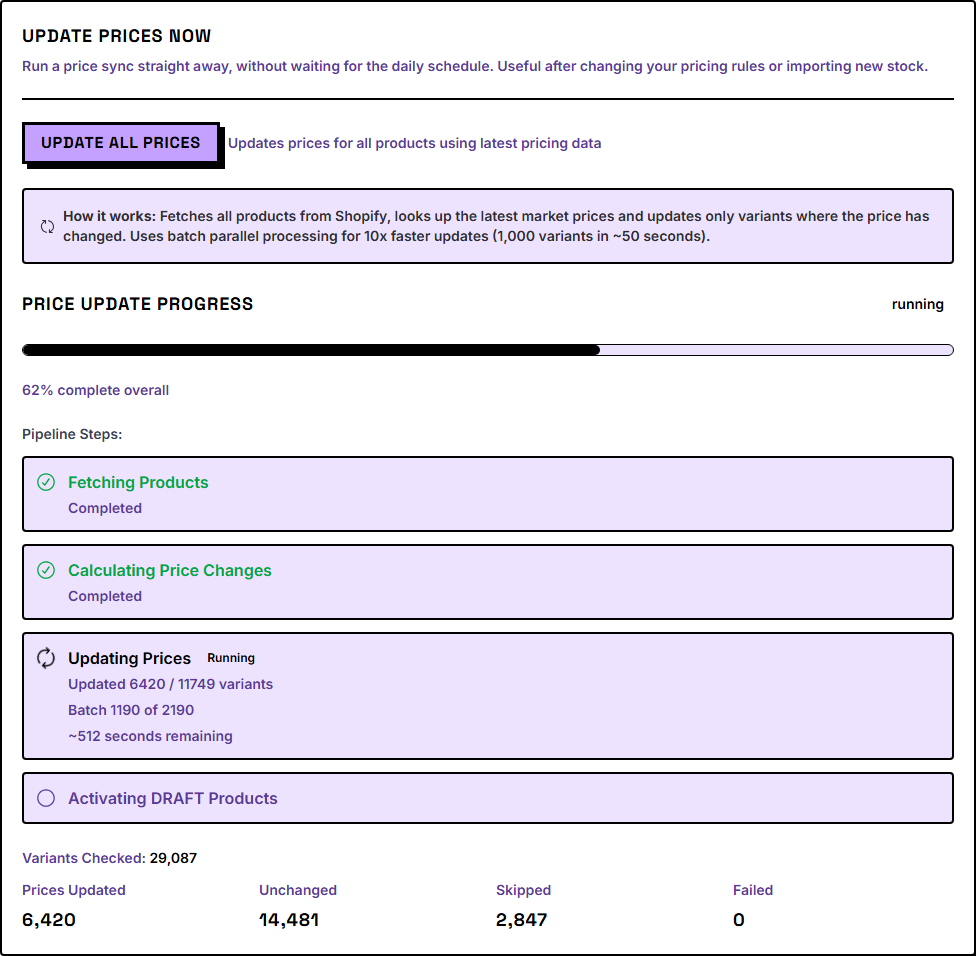
What happens:
- All synced products are updated with current pricing
- No product data (title, description, images) is changed
- Only price fields are modified
- Duration: ~5-10 minutes for 1000 products (faster than full sync)
One at a time: a store can only have one price update running. If a run is already under way — started in another tab, or by your daily schedule — the page shows that run's progress instead of the button. Reloading the page while a run is going reconnects you to it.
When to Use Manual Updates
- After changing pricing configuration - Apply new markup to all products
- Before a sale or event - Ensure prices are current
- After major market shifts - Format ban/unban, tournament results
- Testing pricing changes - Verify new pricing before scheduling
Automated Price Sync
Schedule price updates to run automatically once a day at a time you choose.
Setting Up Automated Sync
- Go to Store Settings → Catalog
- Find the Price Sync card
- Toggle Enable Automated Price Sync to ON
- Pick a Sync time (the hour of day) and your Timezone
- Click Save Schedule
The next price sync will run at the time you chose.
One schedule covers your whole store: the daily run updates prices for every enabled catalog (MTG, Pokémon, etc.) — there is no separate schedule per game.
Choosing Your Sync Time
Price syncs run once a day. You choose the hour and the timezone; LGS Forge handles the rest (including daylight-saving changes automatically).
Why once a day? Every upstream price source LGS Forge reads — MTGJSON for MTG, TCGCSV for Pokémon/Riftbound — publishes a single fresh build per day. Running more often would just re-push the same numbers, so a daily sync keeps your store current without wasting your Shopify API budget.
Picking a good time
Upstream prices land overnight (the refresh finishes around 2:00 AM US Eastern / roughly 06:00 UTC). For the freshest data, choose a sync time later in the morning in your timezone. Very early-morning times may pick up the previous day's prices, since that day's refresh hasn't landed yet. A mid-morning slot, before your store gets busy, is a safe default.
Viewing Next/Last Run
After saving your schedule:
- Next Run - When the next price sync will execute
- Last Run - When the most recent price sync completed
Times are displayed in your local timezone.
Disabling Automated Sync
To stop automated price syncs:
- Go to Store Settings → Catalog
- Toggle Enable Automated Price Sync to OFF
- Click Save Schedule
Scheduled syncs will stop. You can still run manual price updates.
Monitoring Scheduled Syncs
Checking Sync Status
To verify scheduled syncs are running:
- Go to Sync tab → Sync History
- Filter by Price Updates job type
- Review recent price update jobs
- Check timestamps match your schedule
Expected pattern:
- Jobs appear at regular intervals matching your schedule
- Status shows Completed
- Updated counts reflect price changes
Viewing Results
Each automated price sync appears in Sync History:
- Job type - "Price Update"
- Status - Completed (or Failed if error)
- Results - Updated count (how many products had price changes)
- Duration - Time to complete
Example: "Updated 847 products in 4 minutes 23 seconds"
Troubleshooting Missed Schedules
If scheduled syncs aren't running:
- Verify Enable Automated Price Sync is ON
- Check Next Run time - is it in the future?
- Review Sync History for error messages
- Ensure worker process is running (server-side)
- Contact support if schedule consistently fails
Price Sync vs. Product Sync
Price Sync (This Feature)
What it updates:
- Product prices (all variants)
- Condition variant prices (if enabled)
- Compare-at prices (if configured)
What it doesn't update:
- Product titles
- Descriptions
- Images
- Metafields
- Inventory quantities
- Variants (Normal/Foil)
Duration: 5-10 minutes for 1000 products
Full Product Sync
What it updates:
- Everything (prices, titles, images, metafields, variants, etc.)
Duration: 30-60 minutes for 1000 products
When to Use Which
Use Price Sync:
- Daily/regular price updates
- After changing pricing configuration
- When only prices need updating
- For automated schedules
Use Product Sync:
- Adding new sets
- Updating product data (new images, metafield changes)
- Fixing incorrect product information
- Adding/removing condition variants
Best Practices
How Often Prices Sync
Price syncs run once a day for every store — that matches how often the upstream price sources refresh, so more frequent syncs wouldn't change anything. There's nothing to tune here; just pick the time that suits your store.
Timing Recommendations
Best times to schedule:
- Mid-morning in your timezone - After the overnight price refresh has landed (finishes ~2:00 AM US Eastern), and before your store gets busy
- Weekdays - More stable pricing than weekends
Avoid:
- Very early morning (e.g. midnight–5 AM) - The day's new prices may not have landed yet, so you'd sync yesterday's numbers
- Peak traffic hours (12 PM-6 PM)
After Major Changes
When changing pricing configuration significantly:
- Disable automated sync temporarily
- Run a manual price update
- Review results in Sync History
- Verify a few products manually in Shopify
- Re-enable automated sync if satisfied
Monitoring and Maintenance
Weekly checks:
- Review last 7 days of price syncs in Sync History
- Verify all scheduled syncs completed successfully
- Note any patterns of failures
Monthly reviews:
- Confirm your chosen sync time still lands after the overnight price refresh
- Verify recent scheduled syncs are completing successfully
Common Questions
Do price syncs count toward my Shopify API limits? Yes, but they use fewer API calls than full syncs. LGS Forge has built-in rate limiting to stay within Shopify's limits.
Will price syncs overwrite manual price changes? Yes. Automated syncs apply your pricing configuration to all products. Avoid manual pricing if using automated syncs.
Can I schedule different sync times for different sets? Not currently. The scheduled daily price sync updates all synced products at once. Per-set scheduling is planned for future releases.
What if pricing data is unavailable? LGS Forge uses the last known price or falls back to your global minimum price.
How do I pause scheduled syncs temporarily? Toggle Enable Automated Price Sync to OFF under Store Settings → Catalog. Toggle back ON when ready.
Do I get notified when a scheduled sync completes? Not currently. Check Sync History to verify completion. Email notifications are planned for future releases.
Previous: Sync History ← | Next: Multi-Store Management →