
Appearance
Sync History
Track and review all your past sync jobs to monitor performance and troubleshoot issues.
Accessing Sync History
- Go to the Sync tab
- Scroll down to the Sync History section
- You'll see two views:
- Recent Jobs - Table view of completed syncs
- Activity Log - Timeline view of all sync events
Recent Jobs View
The Recent Jobs table shows your most recent sync operations with detailed results.
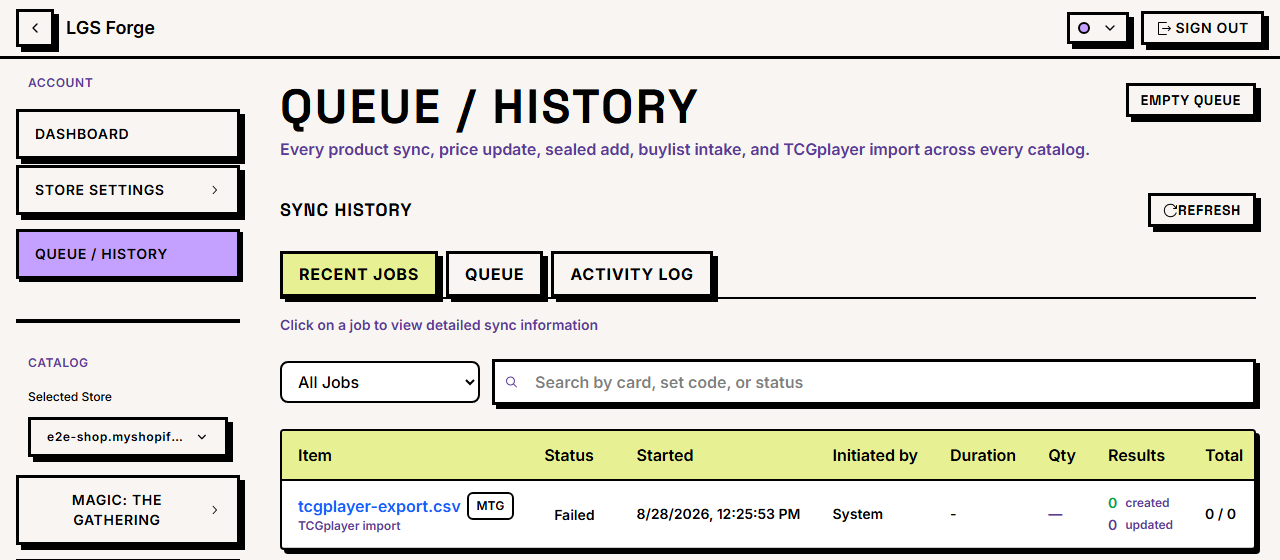
Table Columns
- Set Code - 3-letter code of the synced set (e.g., "MKM")
- Click to view detailed job information
- Status - Current job status badge
- Completed (Green)
- Failed (Red)
- In Progress (Blue)
- Pending (Gray)
- Started - When the sync began (relative time)
- Duration - How long the sync took
- Results - Quick stats:
- Created: New products added
- Updated: Existing products refreshed
- Failed: Products that encountered errors
- Total - Total products processed
Sorting and Filtering
Search:
- Enter set code, set name, or status keyword
- Results filter in real-time
- Clear search to see all jobs
Job Type Filter:
- All Jobs - Show everything
- Product Syncs - Only product sync operations
- Price Updates - Only price-only sync jobs
Pagination:
- Shows 20 jobs per page
- Click Load More to see older jobs
- Scroll to view additional pages
Viewing Job Details
Click any row in the Recent Jobs table to open detailed information:
Job Detail Modal shows:
- Full set names
- Start and end timestamps
- Complete error logs (if any)
- Breakdown of results by phase
- Failed product details with reasons
Activity Log View
The Activity Log provides a timeline view of all sync events.
Event Types
Queued (Gray icon):
- Sync job was created and added to the queue
- Waiting for worker to process
Started (Blue icon):
- Worker picked up the job
- Sync is now in progress
Validating (Yellow icon):
- Pre-sync validation in progress
- Checking metafields, pricing config, etc.
Completed (Green checkmark):
- Sync finished successfully
- Products created/updated
Failed (Red X):
- Sync encountered a fatal error
- No products were synced (or partial sync)
Timeline Display
Each event shows:
- Event type icon and label
- Timestamp (relative time, e.g., "2 hours ago")
- Set code for context
- Job ID (click to view details)
Events are sorted newest first.
Filtering Activity Log
Use the same filters as Recent Jobs:
- Search by set code or status
- Filter by job type (product sync vs. price update)
- Load more events to see older activity
Understanding Job Status
Pending
What it means: Job is queued but hasn't started yet.
Why it happens:
- Multiple syncs running simultaneously
- Worker is processing other jobs
- High queue volume
What to do: Wait a few minutes for the worker to pick it up.
In Progress
What it means: Sync is actively running.
Phases:
- Building Product Cache
- Creating Collections
- Syncing Products
What to do: Monitor the real-time progress on the main Sync tab.
Completed
What it means: Sync finished successfully.
Results include:
- Total products processed
- Created count (new products)
- Updated count (existing products refreshed)
- Failed count (errors encountered)
What to do: Review results. If failures occurred, check error details.
Failed
What it means: Sync encountered a fatal error and stopped.
Common causes:
- Metafields not set up
- Shopify API rate limits exceeded
- Network timeout
- Invalid product data
- Authentication issues
What to do: Click the job row to view error details, then see Troubleshooting.
Common Sync Patterns
Successful Sync
Queued → Started → Validating → Completed- All phases complete
- Products created/updated
- Minimal or zero failures
Partial Success
Queued → Started → Completed (with some failures)- Most products synced
- Some products failed (e.g., missing data)
- Check failed product details
Complete Failure
Queued → Started → Failed- Fatal error stopped the sync
- No products created
- Review error logs
Analyzing Sync Performance
Sync Duration
Track how long syncs take to identify bottlenecks:
Typical durations:
- 50 products: 1-2 minutes
- 100 products: 2-5 minutes
- 500 products: 10-15 minutes
- 2,000+ products: 30-60 minutes
If syncs are slower than expected:
- Check Shopify API response times
- Verify worker process is running
- Look for network issues
- Consider syncing in smaller batches
Success Rate
Monitor created vs. failed counts:
Healthy sync:
- 95%+ success rate
- Minimal failures
Problematic sync:
5% failure rate
- Recurring errors on specific products
What to do:
- Review failed product details
- Check for data quality issues
- Verify metafield configuration
Failure Patterns
Look for patterns in failed jobs:
Pattern: All syncs fail during Phase 1 Cause: Metafields not set up or database connection issue
Pattern: Syncs fail after processing 100-200 products Cause: Shopify API rate limits hit
Pattern: Specific sets always fail Cause: Bad data in those sets (missing images, invalid prices)
Exporting Sync History
Currently, sync history is view-only in the app. To export data:
Manual Export
- Click each job to view details
- Copy relevant information
- Paste into a spreadsheet
API Export (Advanced)
Use the LGS Forge API to programmatically fetch sync history:
bash
GET /api/sync-history?limit=100&offset=0Response includes:
- Job IDs
- Status
- Timestamps
- Results (created, updated, failed)
- Error messages
See API documentation for details (coming soon).
Retention
Sync history is retained for:
- Last 100 jobs - Always accessible
- Last 30 days - All jobs within this window
- Older jobs - May be archived (contact support to retrieve)
Using History for Troubleshooting
Diagnosing Recurring Failures
- Open Sync History → Recent Jobs
- Filter by Failed status
- Look for common error messages
- Note which sets or products fail repeatedly
- Check Troubleshooting for solutions
Comparing Before/After Changes
To see the impact of configuration changes:
- Note the results of a sync before changes (e.g., created/updated counts)
- Change pricing or metafield configuration
- Run a Force Re-sync
- Compare results in Sync History
- Verify expected behavior (e.g., more updates, fewer failures)
Verifying Price Updates
To confirm automated price syncs are running:
- Filter by Price Updates job type
- Check that jobs run daily (if scheduled)
- Review updated counts to see how many products had price changes
- If no recent price updates, check Price Sync Scheduling
Best Practices
Regular Monitoring
- Check Sync History weekly - Review success rates
- Investigate all failures - Don't ignore errors
- Track performance trends - Note if syncs slow down over time
Before Major Changes
- Review recent syncs - Ensure current state is stable
- Note current success rates - Baseline for comparison
- Test with small syncs - Validate changes before large syncs
After Issues
- Document error messages - Copy full error text
- Note job IDs - Useful for support requests
- Compare with previous successful syncs - Identify what changed
Common Questions
How far back does sync history go? Last 100 jobs or 30 days, whichever is more.
Can I delete sync history? No, history is maintained automatically for troubleshooting.
Why don't I see a sync I just ran? Refresh the page. If still missing, check if the sync actually started (it may be pending).
What does "0 created, 0 updated" mean? No products were modified. Possible reasons:
- Products already exist and haven't changed
- Sync failed before processing products
- Filter or test mode limited products to zero
Can I re-run a failed sync? Yes. Select the same sets and start a new sync. Previous failed jobs remain in history for reference.
Previous: Syncing Products ← | Next: Price Sync Scheduling →